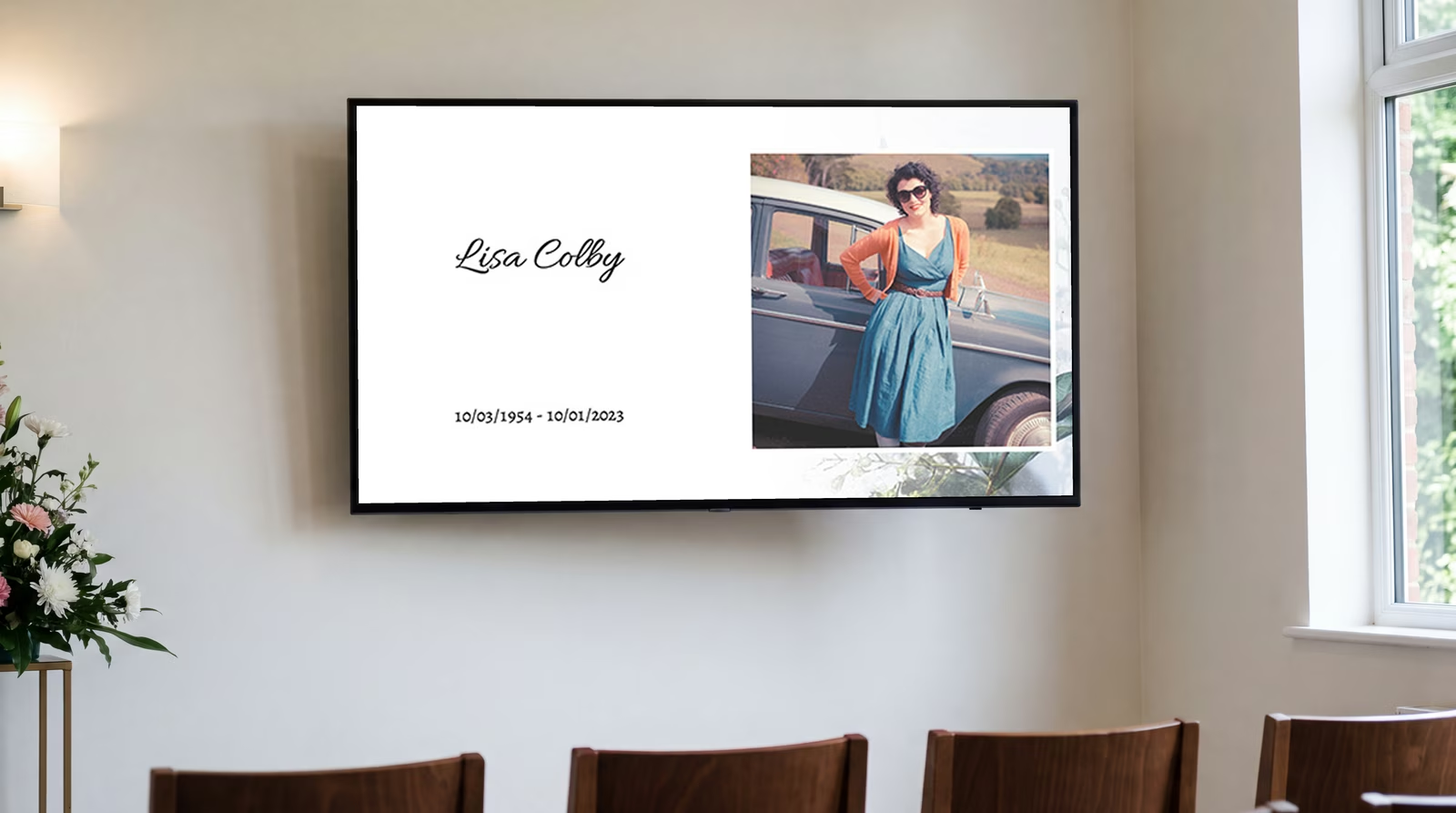
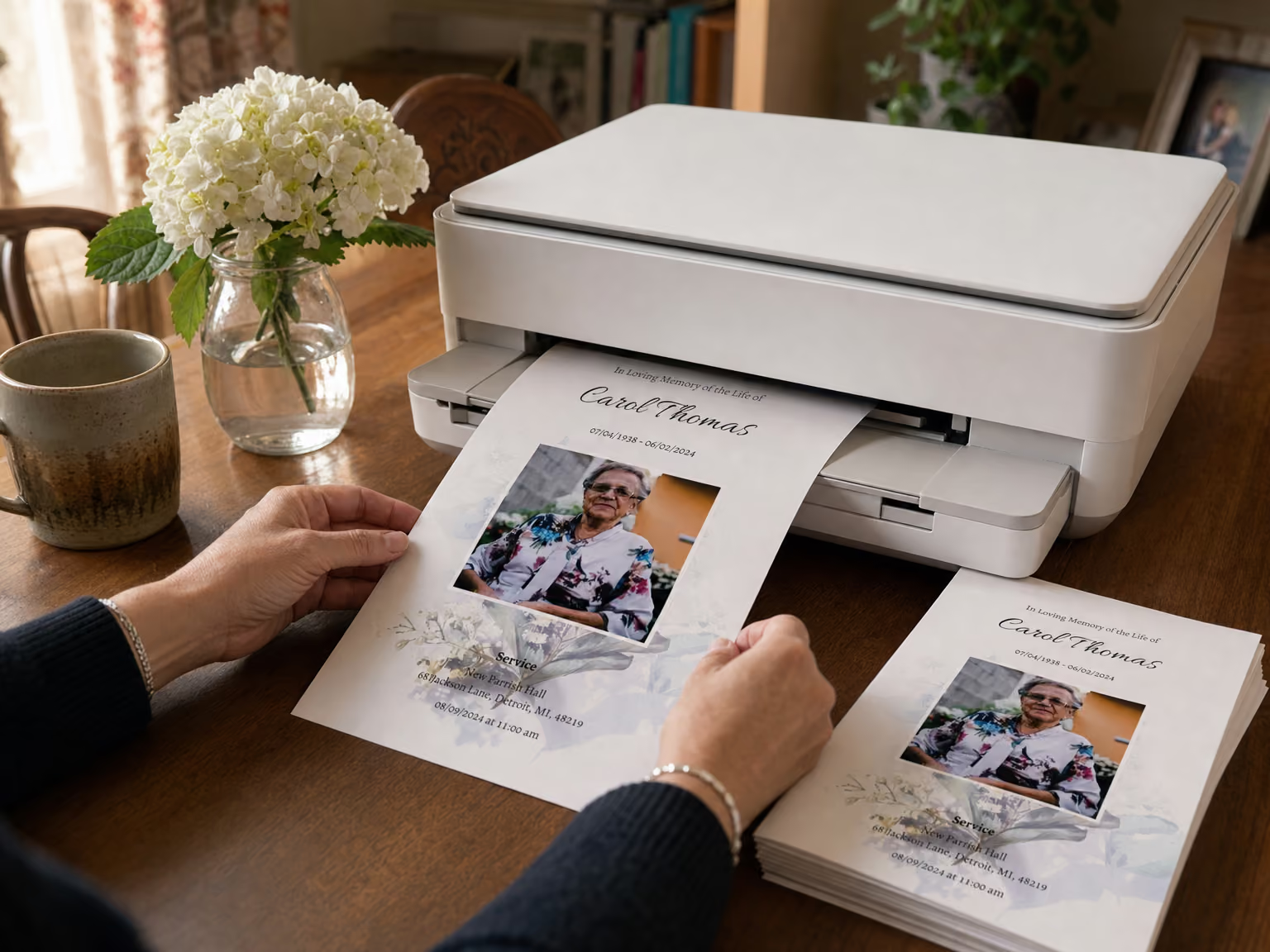
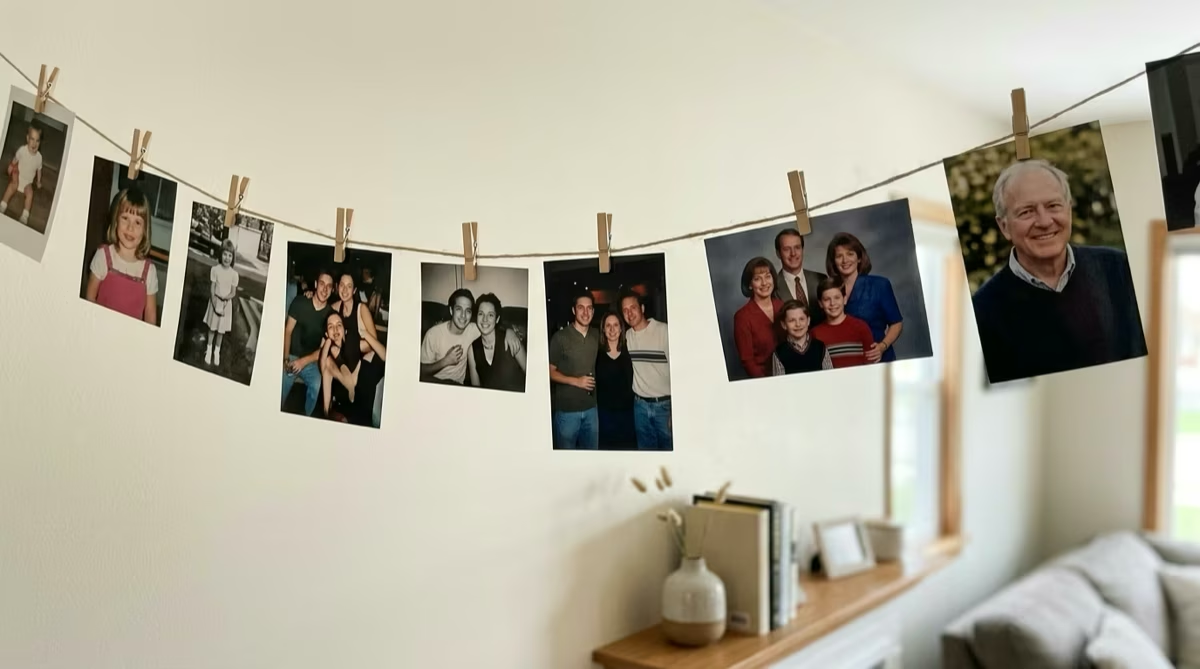
Being asked to make a funeral slideshow can feel overwhelming, particularly if you've never made a video before. You're short on time, the photos are scattered across phones, albums and family group chats, and everyone wants some input. Choosing the right funeral slideshow maker can take a lot of that pressure off.
You want to create something beautiful and polished: a tribute that tells the story of the person you love and gives everyone at the service time to remember them. We looked at six different platforms to help you find the right fit.
What to look for in a funeral slideshow maker
The best tool is the one that helps you make a personal, polished tribute in the time you have. Before comparing platforms, look for these features:
- Easy to use, even without editing experience: You shouldn't need to learn a video timeline. Look for a guided process, drag-and-drop photo ordering and clear controls.
- Funeral slideshow templates: Memorial-specific themes give you a suitable starting point. You won't have to adapt a template made for a wedding, birthday or social post.
- Automatic timing and transitions: Setting every photo length and transition by hand takes time. A platform that handles the pacing for you can produce a smoother result with far less work.
- Simple photo collection: Photos are usually spread across the family. A shared upload link keeps contributions in one project instead of across emails, texts and group chats.
- Music, preview and download options: Look for royalty-free music or the option to upload your own song, a full preview you can share with family, and a downloadable MP4 you can test before the service.
Quick guide
- Eulogize: Best if you have no video-editing experience and want the timing and transitions handled for you.
- PowerPoint: Best if you already know the software and want a manual slide-by-slide build.
- Movavi Video Editor: Best if you are comfortable downloading a full video editor and making the timing and transition choices yourself.
- Adobe Premiere desktop: Best if you're an experienced editor who wants professional control.
- Tribute.co: Best if you want to collect recorded messages from family and friends.
- EverPresent: Best if the photographs are in albums or older formats and you want a team to digitize them and build the video.
1. Eulogize: best for people without video-editing experience
Eulogize is purpose-built for funeral slideshows. You choose from its library of funeral-appropriate themes, then all you need to do is upload the photographs and pick your music. The platform handles the timing, transitions and layout, so you can focus on choosing the memories that tell the person's story rather than learning to become a video editor.
What makes Eulogize easy to use
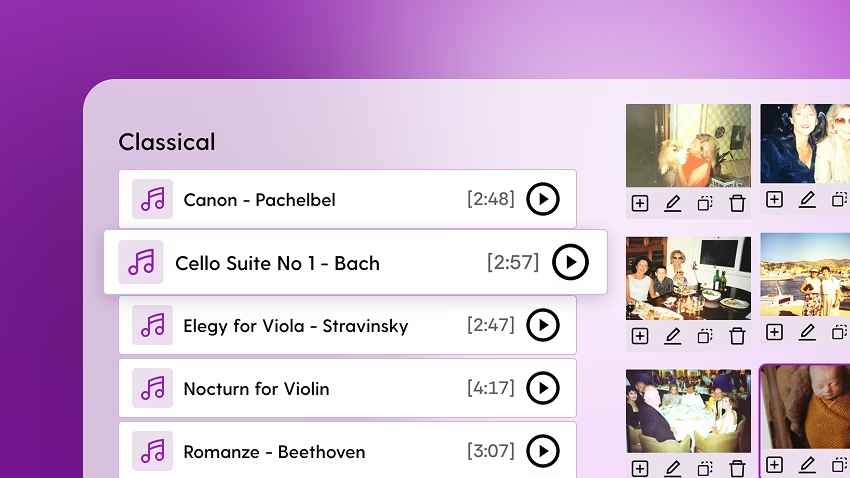
- Funeral-specific templatesStart with a large library of templates designed for memorial services rather than adapting a general video template.
- Simple photo collectionUpload a whole collection at once, drag and drop to change the order, or share a link so relatives can add photographs.
- Music without the searchChoose from royalty-free tracks or upload a meaningful MP3 of your own.
- Timing and transitions handledEulogize paces the photographs to the length of the music and applies the transitions for you.
- Live preview and family reviewWatch the tribute as you build it, then share the preview with family before finalizing it.
- Instant, venue-ready downloadDownload the finished tribute as a standard MP4 when you are ready.
Eulogize lets you build and preview the full tribute for free, with no editing features gated. You don't pay until you're happy with it. It works especially well for families who want to make the tribute themselves without becoming video editors in the process.
Pros
- Specifically designed for funeral slideshows
- Simple drag-and-drop editor
- Large library of funeral-appropriate templates
Cons
- The editing experience is more limited on a phone than on a larger screen
2. PowerPoint: best if you already know the software
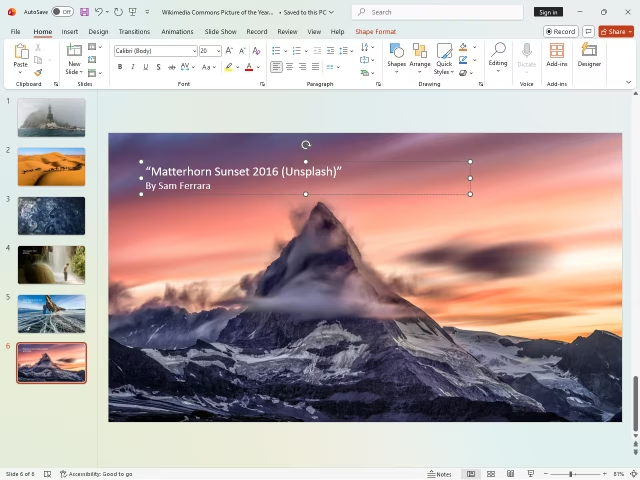
PowerPoint can make a funeral slideshow with tools many people already recognize from work or school. Each slide is a blank canvas: add and crop the photograph, position any text, choose a transition, set how long the slide stays on screen and add the music before exporting the presentation as an MP4 from a compatible desktop version.
Pros
- Familiar to existing PowerPoint users
- Complete control over every slide
- Probably already on your computer
Cons
- Not designed specifically for funerals
- Photos must be arranged manually
- Every transition and timing choice must be made by hand
- No built-in photo collection
3. Movavi Video Editor: best for hands-on desktop editing
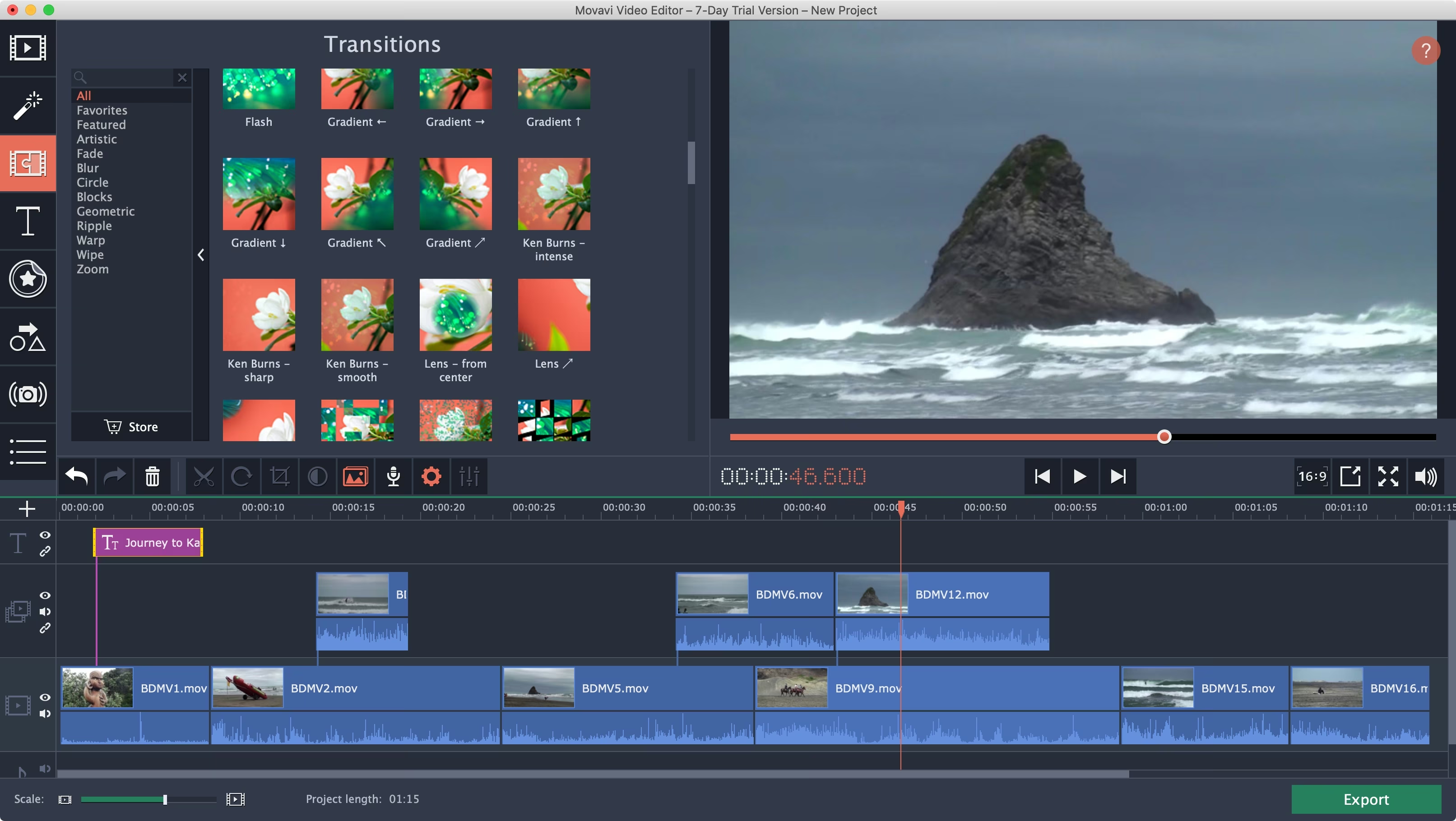
Movavi is a full desktop video editor for Windows and Mac, so it needs to be downloaded and installed rather than used in a browser. Its timeline can combine photographs, video clips, titles, music and transitions.
You still need to decide which templates, effects and transitions feel appropriate, then arrange and pace the full video yourself. Movavi offers a limited trial, but trial exports can carry restrictions such as a watermark or an export-length limit. Continuing with the full version requires a paid license or plan.
Pros
- Supports photographs, video clips and music
- Detailed timeline control
- Available for Windows and Mac
Cons
- Must be downloaded and installed
- Not designed specifically for funerals
- Photo order, timing and transitions must be set manually
- Trial exports are restricted before a paid license or plan is required
4. Adobe Premiere desktop: best for experienced video editors
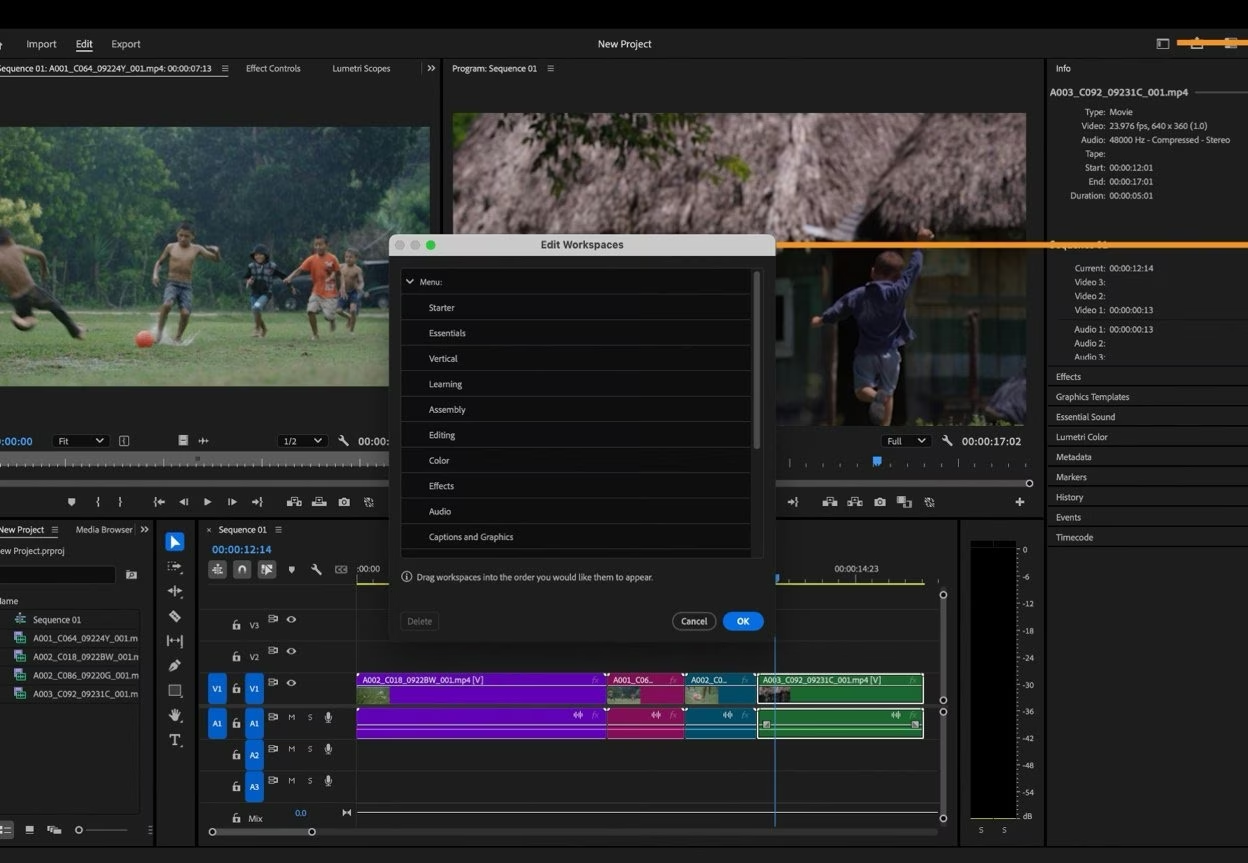
Adobe Premiere desktop is professional editing software installed on a Windows PC or Mac. It can combine photographs, video footage, detailed audio, titles and effects with far more control than most families need for a funeral slideshow.
If you already use Premiere, that control can be valuable. Starting from scratch is a different proposition. Its professional workflow introduces media bins, tracks, audio mixing and export settings, and there are no funeral-specific themes or guided decisions to help a first-time editor move quickly.
Pros
- Professional control over video, audio, titles and export
- Supports photographs and video clips
- Precise timeline and audio editing
Cons
- Must be downloaded and installed
- Requires an ongoing subscription
- Steep learning curve for first-time editors
- No funeral-specific templates or guided setup
5. Tribute.co: best for recorded messages from family and friends

Tribute.co is built around a different kind of memorial video. You share an invitation link, and friends and relatives record or upload personal video messages from their own devices. Those clips can then be arranged into one group tribute.
It is a strong choice when hearing from many people is the point of the video. For a traditional funeral slideshow, however, its message-led format creates a different result from a flowing story told mainly through family photographs and music.
Pros
- One link collects messages from family and friends
- Contributors do not need to download an app
- Brings many people's voices into one video
Cons
- Focused on recorded messages rather than a photo-and-music slideshow
- Contributors need to record or upload their own clips
- DIY editing is still required unless you pay for Concierge
6. EverPresent: best when old photos need to be digitized
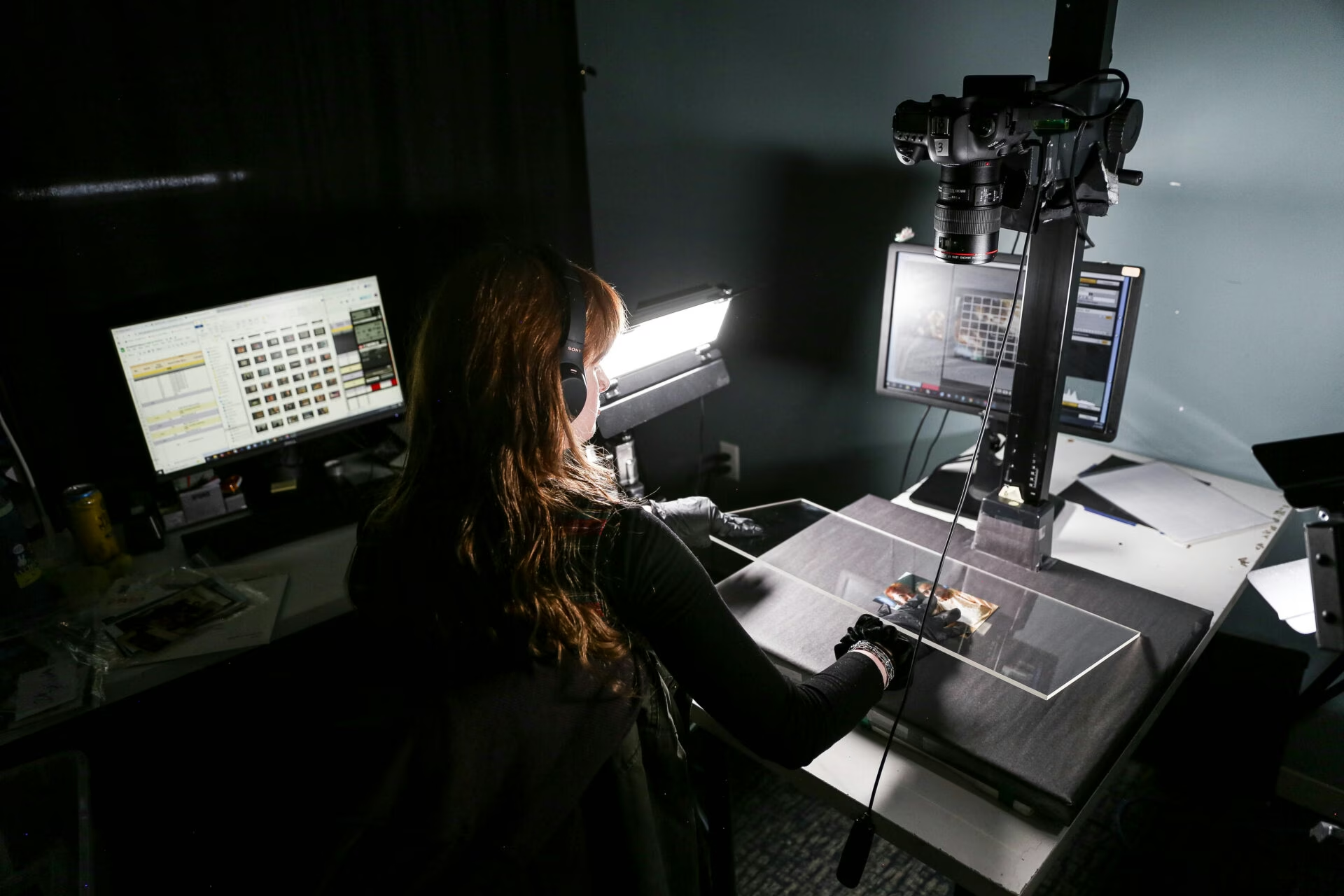
EverPresent is a done-for-you service for families whose photographs and home movies are still in albums, boxes or older formats. You can drop the originals at one of its locations, request a shipping label or arrange home pickup where available. Its team can digitize photos, slides, negatives, albums, film reels and video tapes, then use the selected material to create the memorial slideshow.
EverPresent's Signature Slideshow starts at $599 for up to 100 images and includes one round of comprehensive edits, with a service fee added to each order. You need to allow time for the material to be digitized, the draft to be prepared and your feedback to be applied.
Pros
- Handles physical photos, albums, slides, negatives and old video formats
- Store drop-off, shipping and home pickup options
- A designer builds the finished slideshow
Cons
- Signature Slideshow starts at $599 before the service fee
- Project timing includes digitizing, design and feedback
- Last-minute changes must go back through the service team
Funeral slideshow makers at a glance
| Maker | Experience | Build | Platform | Starts with |
|---|---|---|---|---|
| Eulogize | None | Guided | Browser | Template |
| PowerPoint | Familiar | Manual | Desktop | Slides |
| Movavi | Some | Manual | Desktop | Timeline |
| Adobe Premiere | Advanced | Manual | Desktop | Timeline |
| Tribute.co | Some | Collaborative | Browser | Invitation |
| EverPresent | None | Delegated | Service | Originals |
Funeral video makers: addressing common issues
“I do not know how long each photo should stay on screen”
Start with about five to six seconds per photograph. That gives people at the service time to see the faces, take in the moment and connect the photograph with their own memory without making the slideshow feel slow. With Eulogize, the timing is handled for you and the photographs are paced to the length of the music.
“The photos are spread across the whole family”
Create one place for everyone to contribute, give the family a clear deadline and ask each person for their best five to ten photographs rather than everything on their phone. If you use Eulogize, send the family upload link so their photographs go directly into the tribute project instead of being scattered through email and message threads.
“I cannot find suitable music”
If there is an obvious song connected to the person, start there. If not, a calm instrumental track can support the photographs without competing with them. Eulogize includes a royalty-free music library, or you can upload your own MP3 and hear it with the full slideshow in the live preview.
“Everyone wants to check it before the service”
Agree on one person who will make the final call, then send one near-finished preview with a deadline for essential corrections. Eulogize lets you share the preview with family without sending a large finished video back and forth.
“I am worried the venue will not be able to play it”
Ask the funeral venue which video format and delivery method it prefers. MP4 is widely supported, but download the final file, test it on the venue's actual setup and take a backup copy on a second USB drive or device.
“I have left it until the last minute”
Use 30 to 60 of the strongest photographs, one piece of music and a simple theme. This is not the moment to learn advanced editing. A guided maker can take care of the layout, timing and transitions so your remaining time goes into choosing the memories.
Common questions about funeral slideshow makers
What is the easiest way to make a funeral slideshow?
For a traditional photo-and-music tribute, a funeral-specific maker is usually the easiest option. Eulogize starts with suitable themes and handles the timing and transitions, so you do not need to learn presentation or video-editing software.
How many photos should a funeral slideshow include?
Around 30 to 60 well-chosen photographs is a useful range for an average three-to-six-minute funeral slideshow. At roughly five to six seconds per photograph, people have time to appreciate each image. Less is often more: a shorter selection of meaningful photographs usually tells the story better than every photo you can find.
How can I collect photos from family?
Use one shared upload link, set a deadline and ask relatives to add only their strongest photographs. Eulogize provides a family upload link so contributions land in the same project instead of arriving through separate emails and message threads.
Can I use my own music?
Yes. Eulogize lets you upload your own MP3 or choose a track from its royalty-free music library.
What video format should I use for a funeral service?
MP4 is widely supported, but always ask the venue what its equipment accepts. Download the final file and test it on the actual playback setup before the service.
How long does it take to make a funeral slideshow?
The biggest variables are how organized the photographs are and how much editing the tool leaves to you. A guided maker is faster because the theme, timing and transitions are already handled; a manual editor can take several hours even after the photographs are ready.
Can you make a funeral slideshow in Canva?
Yes. Canva gives you broad design control and a large template library, but you still need to assemble and time the presentation yourself, and many templates and advanced tools require Canva Pro. The number of controls can also be a steep learning curve for a first-time user. Eulogize starts with funeral-specific themes and handles the timing and transitions for you, making it a better fit if you have not made a slideshow online before.
Ready to start? Follow our step-by-step guide on how to make a funeral slideshow, or read 8 tips to create a beautiful funeral slideshow.
Product details were checked against provider information on September 25, 2026. Features, plans and prices can change.
Make it with Eulogize
Create a beautiful tribute without learning video editing
Upload the photos, choose the music and theme, then let Eulogize handle the timing and transitions. Start free and preview the full tribute before you pay.
Start your tribute video